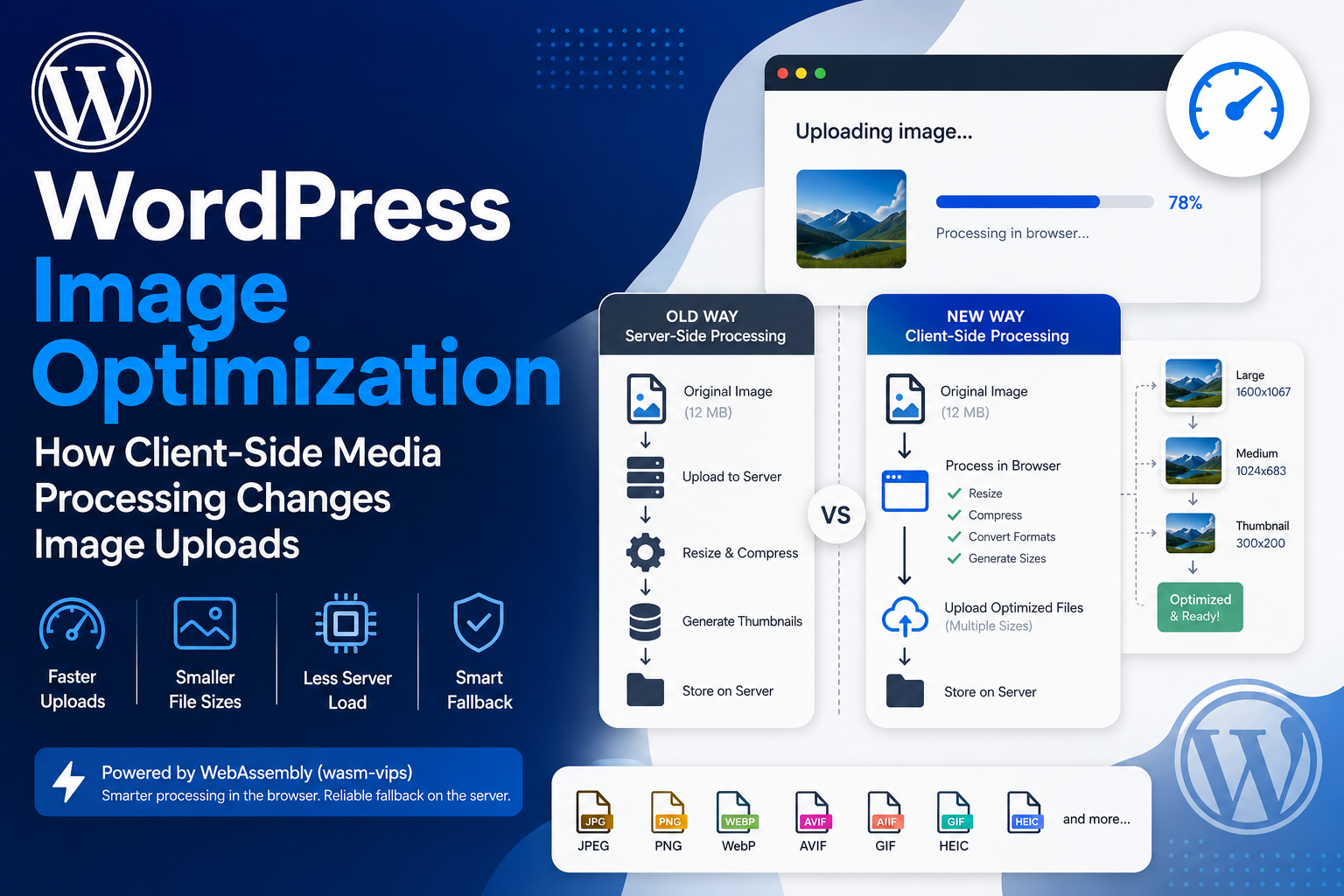
WordPress image optimization is changing in a fairly significant way.
For years, uploading a large image to WordPress has followed roughly the same pattern: send the original file to the server, let PHP process it, generate several image sizes, save everything to disk, and hope the hosting environment has enough memory to finish the job.
Most of the time, that works.
But if you have ever uploaded a huge phone photo to a small shared-hosting account and received a timeout, HTTP error, or missing thumbnails, you have seen where this model can struggle.
WordPress 7.1 introduces a different option: capable browsers can perform much of that image processing before the generated files reach the server.
Compression, resizing, cropping, format conversion, EXIF rotation, and thumbnail generation can happen inside the browser using WebAssembly and libvips.
That sounds like an image optimization feature, and it is.
But there are a few things I would clarify immediately.
- It does not automatically fix every slow WordPress image.
- It does not mean image optimization plugins are suddenly unnecessary.
- It does not always reduce the number of bytes uploaded to your server.
- It does not remove the server-side image pipeline.
What it does is move a meaningful amount of expensive image-processing work away from PHP and into a capable user’s device.
That is the part I find interesting.
In this guide, I want to look at what actually changes, what improves, what does not, and how I would think about WordPress image optimization after this new pipeline arrives.
How WordPress Image Optimization Traditionally Works
Suppose I upload a 6000 × 4000 JPEG from a phone or camera.
The traditional workflow looks roughly like this:
Large original image
        |
        v
Upload to WordPress server
        |
        v
PHP receives image
        |
        v
GD / Imagick
        |
        +--- rotate if needed
        |
        +--- resize large image
        |
        +--- thumbnail
        |
        +--- medium
        |
        +--- medium_large
        |
        +--- large
        |
        +--- custom theme/plugin sizes
        |
        v
Save files to disk
WordPress can use server-side image libraries such as GD or Imagick for that work.
The important point is that the server is doing the heavy processing.
That means the operation depends partly on:
- available PHP memory
- server CPU
- PHP execution limits
- which image library the host provides
- which image formats that library supports
On a powerful server, that may not be a concern.
On inexpensive shared hosting, processing a very large source image and ten custom image sizes can become much more noticeable.
What Client-Side Media Processing Changes
With the new client-side pipeline, the browser can do much of the image work instead.
Original image
        |
        v
Browser
        |
        +--- decode
        |
        +--- rotate
        |
        +--- resize
        |
        +--- compress
        |
        +--- create sub-sizes
        |
        v
Upload processed files
        |
        v
WordPress server
        |
        v
Store + register media
WordPress uses wasm-vips, a WebAssembly version of the libvips image-processing library, for the main browser-side pipeline.
The official WordPress developer note explains the complete implementation here: Client-Side Media Processing in WordPress 7.1.
What I like about this architecture is that the server does not need to become more powerful just because an editor uploads a large image.
When the browser is capable of doing the work, WordPress can use resources that are already available on the user’s machine.
What Can Be Processed in the Browser?
The client-side system covers much more than a simple JPEG resize.
The current implementation includes operations such as:
- image resizing
- cropping
- compression
- JPEG, PNG, WebP, AVIF and GIF processing
- format conversion
- EXIF orientation correction
- progressive/interlaced encoding
- generation of registered WordPress image sub-sizes
There is also special handling for formats such as HEIC and some animated GIF workflows.
That matters because image format support has historically depended heavily on the software installed by the hosting provider.
A Useful Example: iPhone HEIC Photos
HEIC is a good example of why browser-side processing is more than a performance experiment.
An editor may take a photo on an iPhone and try to upload the HEIC file directly to WordPress.
Traditionally, successful processing can depend on whether the server’s image stack supports HEIC.
With supported client-side processing, WordPress can decode the HEIC image in the browser and upload a web-ready JPEG version.
iPhone
   |
   v
HEIC photo
   |
   v
Browser
   |
   +--- decode HEIC
   |
   +--- generate JPEG
   |
   v
WordPress
The original source is retained as a companion file, so the process is not simply throwing the source away.
AVIF Becomes Less Dependent on the Host
AVIF is another interesting case.
If the browser can decode and process the image, WordPress can handle AVIF uploads even when the server-side image editor does not have equivalent AVIF processing support.
That makes image capabilities more consistent across different hosting environments.
For plugin and theme developers, this is a bigger architectural improvement than simply saying “WordPress supports another format.”
The Browser Also Generates WordPress Image Sizes
When WordPress receives an image, it normally creates multiple versions.
photo.jpg

photo-150x150.jpg
photo-300x200.jpg
photo-768x512.jpg
photo-1024x683.jpg
...
The exact list depends on WordPress, the active theme and installed plugins.
If a theme registers:
add_image_size(
    'hero-large',
    1600,
    900,
    true
);
that custom size can participate in the new client-side generation pipeline too.
This is important because I would not want every existing WordPress theme to need a completely new image-size API just to benefit from client-side processing.
Does This Mean Uploads Use Less Bandwidth?
No—and this is one of the most important details in the whole feature.
It is easy to imagine:
Browser compresses image
        |
        v
Less data uploaded
but that is not the complete upload flow.
With traditional server processing, the browser may upload only the original image and the server generates the sub-sizes.
With client-side processing, the browser can upload the original plus the generated sub-sizes.
Traditional

Browser
   |
   +--- original
   |
   v
Server creates sizes


Client-side

Browser
   |
   +--- original
   +--- thumbnail
   +--- medium
   +--- large
   +--- custom sizes
   |
   v
Server stores sizes
So upload traffic can actually increase.
The main win during upload is different:
the server does not need to spend as much CPU and PHP memory generating those images.
Why This Could Matter on Shared Hosting
This is where I think the feature may be especially noticeable.
Imagine an inexpensive hosting account with:
PHP memory limit: limited

CPU: shared

Large source image: 18 MB

Image dimensions: 7000 × 5000

Generated sizes: 10+
The server may need to decode a huge image into memory several times while producing different sizes.
That is much more expensive than the compressed JPEG file size suggests.
Moving eligible processing to the browser can reduce that pressure on the hosting account.
I would not describe this as “making cheap hosting fast.”
It simply moves one expensive category of work away from PHP when WordPress can safely do so.
Generated JPEGs Can Also Be Smaller
The browser-side pipeline uses libvips and modern encoding techniques rather than being limited to whatever GD or Imagick configuration exists on the host.
WordPress Core’s current testing reports roughly 15% smaller generated JPEGs in its comparison with conventional GD/Imagick output.
I would not turn that into a promise that every image on every site will become exactly 15% smaller.
Real results depend on the source image, format, quality settings and generated size.
But more efficient output is useful because those generated images are what visitors eventually download.
Does This Automatically Improve Core Web Vitals?
Not automatically.
This is where I would separate media processing from frontend image delivery.
A smaller generated image can help performance.
But I can still make a website slow by doing things such as:
- serving a 2000px image inside a 400px container
- using the wrong image size
- lazy-loading the main LCP image unnecessarily
- putting a huge hero background above the fold
- failing to use responsive image markup correctly
- loading images from a slow origin without caching
So I would not install WordPress 7.1 and expect PageSpeed Insights to suddenly jump from 60 to 100.
The feature improves an important part of the image pipeline.
Frontend image performance still needs frontend work.
Upload Optimization vs Delivery Optimization
I think this distinction makes the whole topic easier to understand.
UPLOAD PIPELINE

Editor
   |
   v
Process image
   |
   v
Generate sizes
   |
   v
Store media


DELIVERY PIPELINE

Visitor
   |
   v
HTML / CSS
   |
   v
srcset / sizes
   |
   v
CDN / origin
   |
   v
Correct image downloaded
Client-side processing mainly changes the first side.
A good image optimization strategy still needs to think about the second.
Does This Replace Image Optimization Plugins?
I would not assume so.
Some image optimization plugins do much more than resize an image at upload time.
Depending on the solution, an image service may also provide features such as:
- CDN delivery
- automatic format negotiation
- WebP or AVIF generation strategies
- optimization of old Media Library images
- off-site compression
- lazy-loading controls
- responsive image rewriting
- remote image transformation
Client-side media processing is not a CDN.
It is not an edge image transformation service.
It is not automatically a replacement for every existing optimization workflow.
What I would do after upgrading is evaluate what my optimization plugin is actually solving.
Plugin only compresses new uploads?
        |
        v
Possible overlap


Plugin provides CDN + transforms + old-image optimization?
        |
        v
Still solving additional problems
I would make that decision from functionality rather than removing a plugin simply because WordPress added a new media feature.
What About WooCommerce Product Images?
WooCommerce is one use case where I can see the new pipeline being particularly useful.
A store manager may receive product photography directly from a photographer or manufacturer.
Those source files can easily be much larger than a storefront actually needs.
Product photo

6000 × 6000
12 MB

       ↓

WordPress / WooCommerce

       ↓

Multiple product sizes
Thumbnails
Gallery sizes
Theme sizes
Generating many versions of those images server-side can be resource-intensive.
Moving supported processing into the browser can reduce that server workload.
But I would still optimize the storefront itself.
A 100 KB product thumbnail is useful only if the page actually serves that thumbnail rather than downloading the full 3000px image.
What Happens in Unsupported Browsers?
This is one of the better parts of the implementation.
Client-side processing is designed as a progressive enhancement.
Can browser run client-side pipeline?

           |
      +----+----+
      |         |
     yes        no
      |         |
      v         v
Browser       Existing
processing    server pipeline
If the browser or device cannot safely run the WebAssembly pipeline, WordPress falls back to normal server-side processing.
The user should not need to understand why one machine processed the image locally and another did not.
Browser Support Is Currently an Important Limitation
At the time of writing, the full pipeline relies on browser capabilities that are available by default primarily in modern Chromium-based browsers.
Current WordPress Core documentation lists full desktop support for Chrome and Edge 137 or newer.
Firefox and Safari currently fall back to server-side processing for the full WASM pipeline, although Safari can still participate in some HEIC handling.
I would treat those details as implementation information rather than something site editors should have to memorize.
The fallback is the important user-facing behavior.
WordPress Also Checks the Device Before Processing
A supported browser alone is not enough.
The current implementation also checks whether the device is suitable for the work.
For example, WordPress can fall back when the device has very limited memory, too few CPU cores, a slow/save-data network configuration, or browser security restrictions that prevent the worker from running.
I think this is the right trade-off.
Moving work from the server to a six-year-old low-memory phone would not automatically be an improvement.
What If Processing Fails Halfway Through?
Large media uploads also introduce another practical problem: networks fail.
The new client-side flow uploads generated sub-sizes independently rather than treating the entire operation as one indivisible request.
Current WordPress behavior includes retry handling for failed requests and can pause when connectivity disappears and resume when the browser comes back online.
Generate sizes
     |
     v
Upload size 1   ✓
Upload size 2   ✓
Upload size 3   ✗
                  |
                  v
                Retry
                  |
                  v
                 ✓
That is a useful improvement for editors working with large media over unreliable connections.
Plugin Developers Should Test Existing Media Hooks
If you maintain a WordPress plugin that reacts to image uploads, I would test it against this new pipeline rather than assuming nothing changes.
The good news is that important WordPress metadata hooks still participate in the process.
For example, wp_generate_attachment_metadata still fires.
The processing sequence can involve both a create and later update context as the client-generated sub-sizes are finalized.
That means code such as:
- CDN synchronization
- watermarking workflows
- custom attachment metadata
- external media synchronization
should be tested to ensure it behaves correctly when the metadata process has multiple passes.
I would make those handlers idempotent wherever possible.
Existing WordPress Image Settings Still Matter
I also like that WordPress is not introducing a completely unrelated configuration system.
The client-side pipeline respects several existing image settings and filters, including areas such as:
big_image_size_thresholdimage_editor_output_formatimage_save_progressivewp_editor_set_quality- JPEG quality settings
That means existing code that changes image quality or output formats can continue to influence processing rather than being ignored simply because the browser performs the resize.
A Practical Image Quality Example
Suppose I want small JPEG thumbnails to use slightly lower quality than larger images.
add_filter(
    'wp_editor_set_quality',
    function (
        $quality,
        $mime_type,
        $size
    ) {
        if (
            'image/jpeg' === $mime_type
            &&
            isset( $size['width'] )
            &&
            $size['width'] <= 300
        ) {
            return 65;
        }

        return $quality;
    },
    10,
    3
);
The same kind of server-side quality decision can be passed through to the browser-side encoder.
That is a much nicer migration path than forcing plugin developers to maintain two unrelated quality configurations.
Developers Can Disable Client-Side Processing
If a plugin or site has a compatibility reason to use the existing server pipeline, WordPress provides a feature filter.
add_filter(
    'wp_client_side_media_processing_enabled',
    '__return_false'
);
I would not disable it automatically without a concrete reason.
But having an escape hatch is useful while plugins and hosting stacks adapt.
One CSP Setting Developers Should Know
If a plugin or security layer sets a restrictive Content Security Policy, the browser worker used for processing needs to be allowed.
For example, a compatible worker policy needs to allow blob::
Content-Security-Policy:
worker-src 'self' blob:;
If the worker cannot be created, WordPress can fall back to server-side processing.
That is exactly the kind of detail I would include in plugin QA if the product modifies WordPress admin security headers.
How I Would Test Client-Side Processing
I would not test this with one tiny 200 KB JPEG and call it done.
I would use a small collection of real files:
JPEG        ~500 KB
JPEG        ~5 MB
JPEG        15–20+ MB

PNG with transparency

WebP

AVIF

HEIC from iPhone

Animated GIF
Then I would check the browser Network panel while uploading from the Block Editor.
I would verify:
- the upload completes
- expected image sizes exist
- custom theme sizes exist
- the Media Library attachment is correct
- frontend
srcsetcontains the expected sizes - quality is visually acceptable
- plugins that process attachments still behave correctly
The official WordPress testing guide is also worth using: Call for Testing: Client-Side Media Processing.
Test the Fallback Too
The fallback path is just as important as the new feature.
If my site’s normal upload workflow only works in Chrome but fails when WordPress uses the traditional server path, I haven’t really finished testing.
Test A
Chrome / supported environment
        |
        v
Client-side processing


Test B
Unsupported environment
        |
        v
Server-side processing


Both should work.
Progressive enhancement only works well when the fallback remains healthy.
What I Would Still Optimize Manually
Even with better generated files, these are still part of my normal WordPress image checklist:
- Use sensible source dimensions.
- Do not upload a 12,000px image when the design will never display it above 1600px.
- Use the correct WordPress image size in templates.
- Check responsive
srcsetandsizes. - Do not lazy-load the primary above-the-fold LCP image without thinking about the consequence.
- Set image dimensions to reduce layout shift.
- Use CDN/cache infrastructure when the site’s traffic justifies it.
- Audit large CSS background images separately.
Those decisions affect what the visitor downloads.
Browser-side upload processing does not make them disappear.
The Hero Image Still Deserves Special Attention
If I am debugging Largest Contentful Paint, I usually pay special attention to the hero image.
I check questions such as:
- Is the browser downloading the right dimensions?
- Is the image discovered early enough?
- Is it unnecessarily lazy-loaded?
- Does CSS delay its discovery?
- Is the source file unnecessarily heavy?
Client-side media processing may help create a better-compressed hero image.
It cannot fix a template that asks the browser for the wrong file.
Common Misunderstandings I Would Avoid
“Images are now processed only in the browser.”
No. Unsupported browsers and devices continue using the server pipeline.
“Uploads will always use less bandwidth.”
No. Upload traffic can increase because generated sub-sizes are uploaded separately.
“I no longer need an image CDN.”
Client-side processing and image delivery are different layers of the system.
“Core Web Vitals will automatically improve.”
Better encoding can help, but frontend image selection, discovery, responsive markup, caching and layout still matter.
“Every browser uses WebAssembly processing.”
No. The current system checks browser and device capabilities and falls back when necessary.
“My image plugin will definitely work without testing.”
Many existing hooks remain compatible, but plugins that customize the upload pipeline should still be tested.
Is This Really an Image Optimization Feature?
I would say yes—but not in the narrow “compress this JPEG” sense.
The bigger improvement is architectural.
Old assumption

Image processing capacity
        =
Hosting capacity


New possibility

Image processing capacity
        =
Browser resources
        +
Server fallback
WordPress can provide more consistent image-processing capabilities without requiring every hosting account to provide the same image stack.
That is the part I expect plugin developers and hosting providers to care about most.
When Will This Be Available?
Client-side media processing is included in the WordPress 7.1 release cycle.
At the time I am writing this article, WordPress 7.1 is in its Release Candidate phase, with the final release currently scheduled for August 19, 2026.
I would test the feature on staging now if I maintain a media-heavy plugin, block theme, WooCommerce site, or hosting platform.
I would not install a Release Candidate on an important production site just to get the feature a few days early.
The WordPress 7.1 Field Guide is the best place to review the broader developer changes shipping with the release.
My Practical WordPress Image Optimization Strategy
After WordPress 7.1, I would think about image optimization as several separate layers rather than searching for one setting that “optimizes images.”
1. Source image
       |
       v
Reasonable dimensions

2. Upload processing
       |
       v
WordPress client/server pipeline

3. Generated sizes
       |
       v
Correct sizes + quality

4. Storage / CDN
       |
       v
Fast delivery

5. Theme markup
       |
       v
srcset + sizes

6. Browser loading
       |
       v
priority / lazy loading

7. Measurement
       |
       v
Core Web Vitals
Client-side processing improves step two and parts of step three.
It does not remove the other five.
Final Thoughts
What I like about the new WordPress image pipeline is that it solves a real infrastructure problem without making the normal upload experience more complicated for editors.
A capable browser can do the expensive work.
A browser that cannot do it simply falls back to the existing server implementation.
That is a sensible use of progressive enhancement.
I also think it is important not to oversell the change.
This is not the end of image optimization plugins.
It is not a replacement for responsive images.
It does not automatically solve LCP.
And it does not guarantee that uploading a file consumes less bandwidth.
What it does is give WordPress a more modern and consistent way to process media while reducing dependence on PHP memory, server CPU and host-specific image libraries.
For me, that is already useful enough without adding marketing claims around it.
Good WordPress image optimization is still a pipeline, not a plugin checkbox.
Continue Learning
- WordPress Responsive Block Styles: Mobile & Tablet Styling Guide
- WordPress AI Client: Build AI Features Without Vendor Lock-In
- How to Duplicate a Page in WordPress Safely
- More WordPress Development Guides
“`